Hermes Agent: a Self-Improving AI Agent in a Container on microsrv
An agent that lives on a laptop doesn’t live long. Close the lid and the session is over. Hermes Agent from Nous Research works differently: you put it on a server and it runs around the clock. It replies in Telegram while you go about your day. And it remembers everything that happened before.
Below: what it can do and how to spin up its container on microsrv, from registering the OCI image to opening the dashboard on a *.msrv.space domain. The whole setup fits in five console steps, with screenshots.
In short: Hermes runs as a standalone service with persistent memory and skills. On microsrv it deploys as a regular container: official image, gateway run arguments, a volume for state, and an HTTP gateway for the web panel.
1. What is Hermes Agent
Hermes Agent is an open-source (MIT-licensed) autonomous agent from Nous Research, the lab behind the Hermes, Nomos, and Psyche model families. It runs on its own. It answers in messengers, executes tasks on a schedule, and accumulates experience across sessions.
The most interesting part is its closed-loop learning cycle. The agent maintains persistent memory, periodically reminds itself to capture important things, creates a skill after a hard task, and refines that skill the next time it’s used. Past sessions are full-text searchable, user profiles are built through Honcho. The authors call Hermes the only agent that has this cycle working out of the box.
Other capabilities:
- 60+ built-in tools and MCP. Terminal, files, web search, image generation, text-to-speech, browser automation. Any external MCP server plugs in as an additional tool source.
- 20+ messaging platforms from a single gateway process. Telegram, Discord, Slack, WhatsApp, Signal, Matrix, email, Teams, and more. Voice messages are transcribed; conversations carry over between platforms.
- Cron scheduler. Recurring tasks in natural language with results delivered to the messenger: morning report, nightly backup.
- Sub-agents. Parallel workflows in isolated sub-agents. A multi-step pipeline collapses into a single call via programmatic tool invocation.
- OpenAI-compatible API server on port 8642. Endpoints
/v1/chat/completionsand/v1/responses. Open WebUI, LobeChat, LibreChat, and hundreds of other frontends connect to the agent as a backend, complete with all its tools. - Web dashboard. Sessions, models, and agent settings from the browser.
- Any model. Nous Portal, OpenRouter, OpenAI, Anthropic, your own local endpoint. Switch without changing code.
The agent needs access to an LLM provider and a place to live.
2. Why microsrv is a good fit
All of Hermes’s state lives in the /opt/data directory inside the container: configuration, keys, sessions, memory, skills. The image itself is stateless. In plain Docker you’d need a bind-mount or a named volume to keep that data safe. On microsrv just the first attached volume is enough: the Stateful OverlayFS mechanism writes every change to the root filesystem onto a replicated NVMe disk. Attach a volume at creation time and /opt/data, along with the agent’s entire memory, survives restarts and host migrations.
The platform handles the rest of the infrastructure. The container gets a static IP in your VPC and reaches the internet through eBPF NAT without a public address, so the Hermes API server on port 8642 stays inside the private network, visible only to your machines. The dashboard is published externally via the HTTPS gateway on a *.msrv.space domain with an automatic TLS certificate. The container can move between hosts using live migration, and the gateway process inside the official image is backed by the s6 supervisor: if it crashes, it restarts within seconds. From the outside, the container runs inside a gVisor sandbox.
Resource-wise the agent is modest: 1–2 GB of RAM is enough for typical tasks. Browser automation is hungrier and needs at least 2 GB.
3. Step 1. Registering the image
Hermes ships as a public OCI image on Docker Hub. For production, pin a specific digest instead of the latest tag: you always know which version of the agent is running, and updates don’t arrive unannounced.
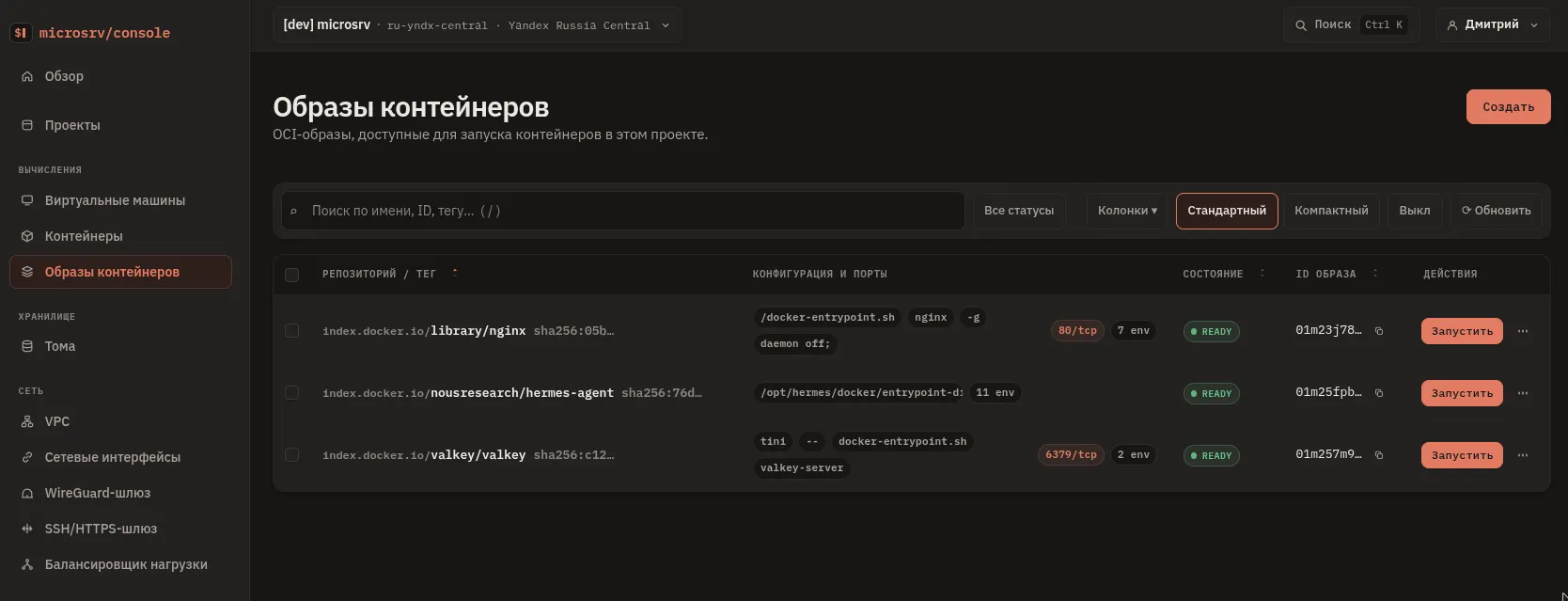
Go to Console → Container Images, click Add Image, and paste this reference:
index.docker.io/nousresearch/hermes-agent@sha256:76ddc21e785fc4522c7fbe7bf67ca665682cbe06724d55b5750a0688e03650d8The image goes through the statuses Pending, Downloading, and Ready: layers are pulled and cached on the cluster nodes. From the Ready status containers start within seconds.
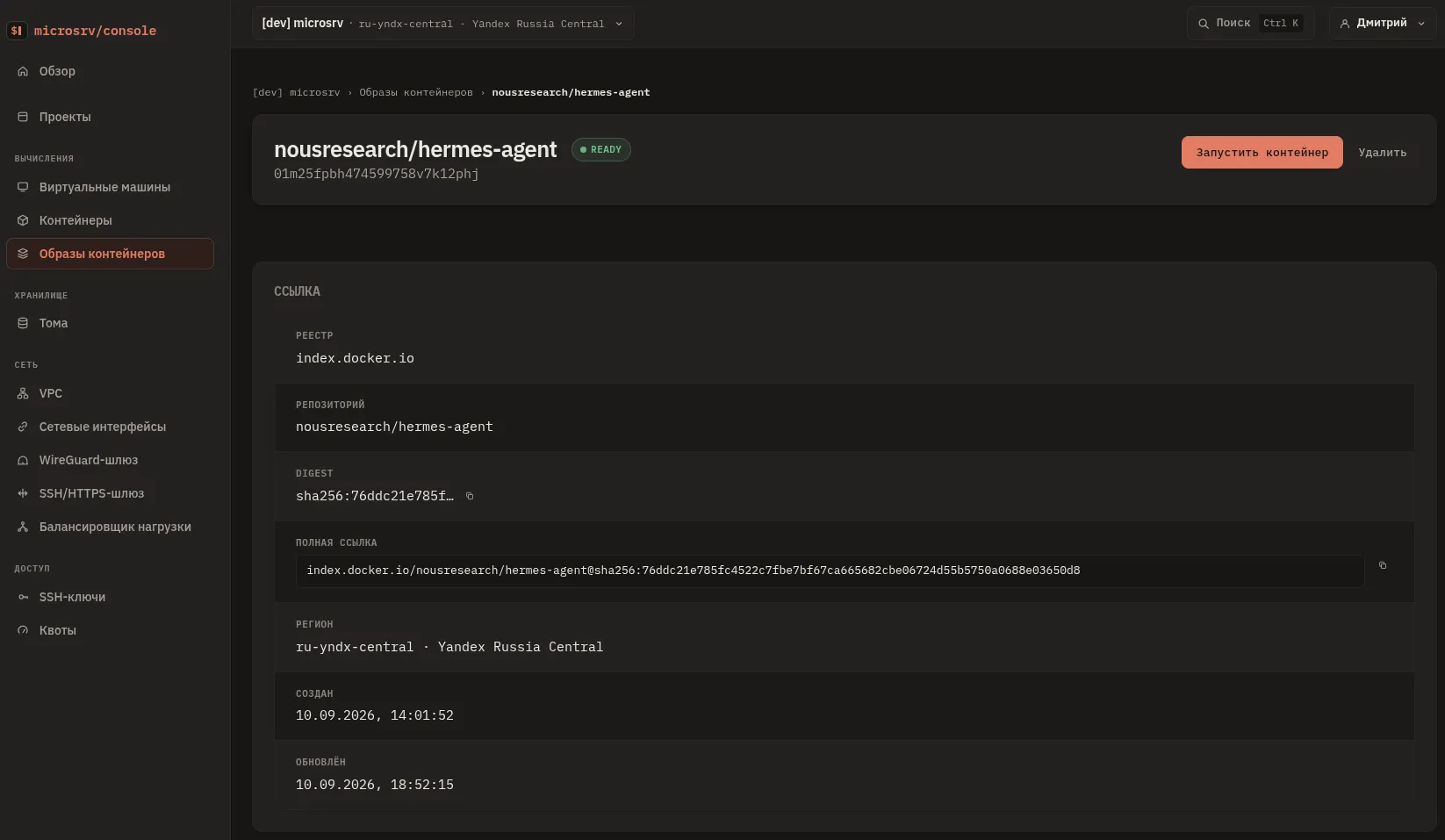
The image card shows the “full reference” with the digest — the one we pin. It comes in handy for docker run and for creating a container in the console.
4. Step 2. Creating the container
In the Console → Containers section click Create Container. A three-step wizard:
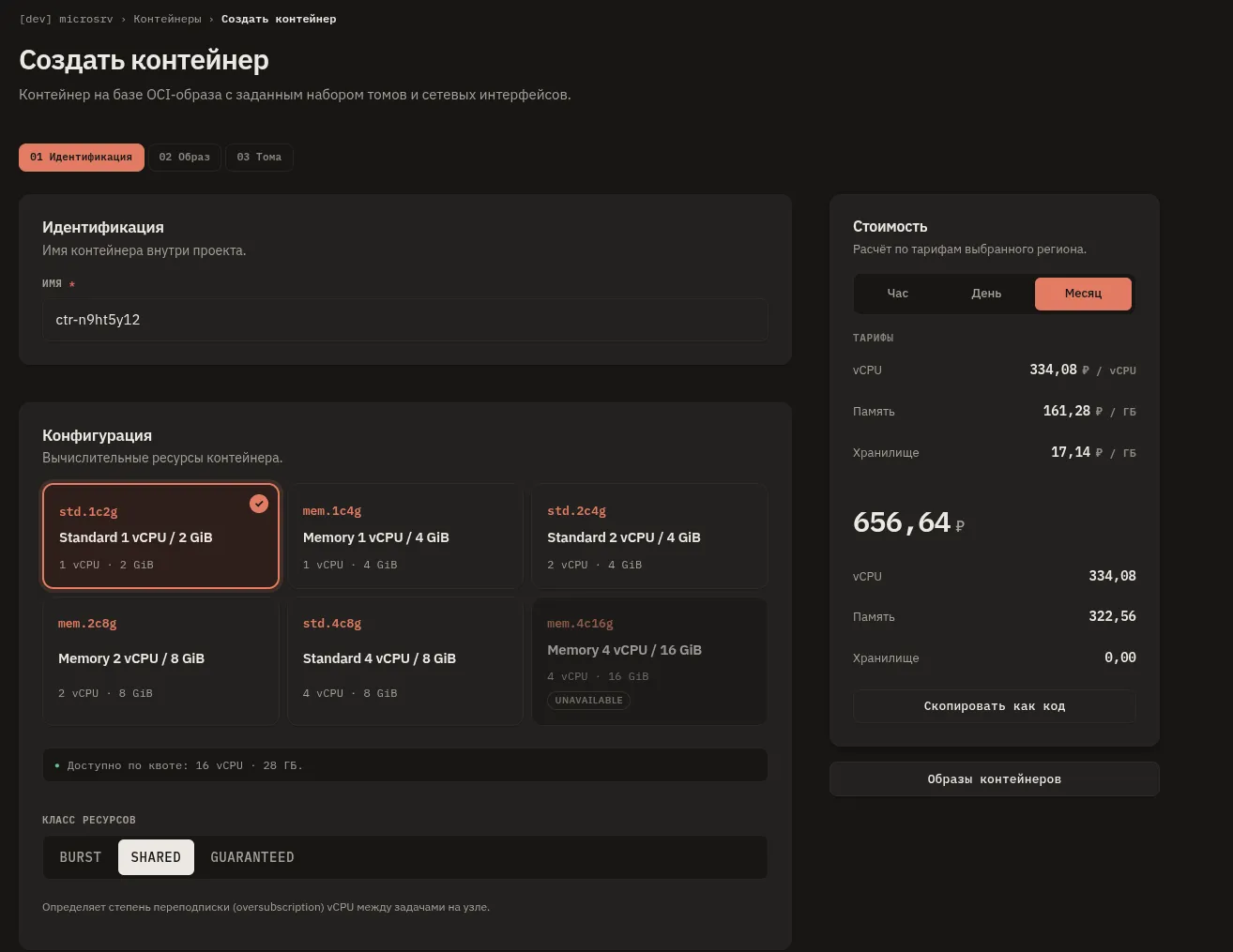
- Identification. Name
hermes— just a convenient label for the container in the project, it doesn’t affect domains or addresses. Flavor —std.1c2g(1 vCPU / 2 GB RAM): enough for agent tasks; for browser automation pick at least 2 GB of memory. - Image. The
nousresearch/hermes-agentimage you registered in the previous step. Below that is the “Run” section: leave the command (entrypoint) as the default from the image, entergateway runin “Arguments (CMD)”. Environment variables — from the table below, one at a time or with the “Paste .env” button. - Volumes. A persistent NVMe disk of at least 5 GB, with room for growing sessions and skills. The first selected volume goes to Stateful OverlayFS, and that’s where the agent’s state will live. Also here — a free VPC network interface: the container gets a static private IP.
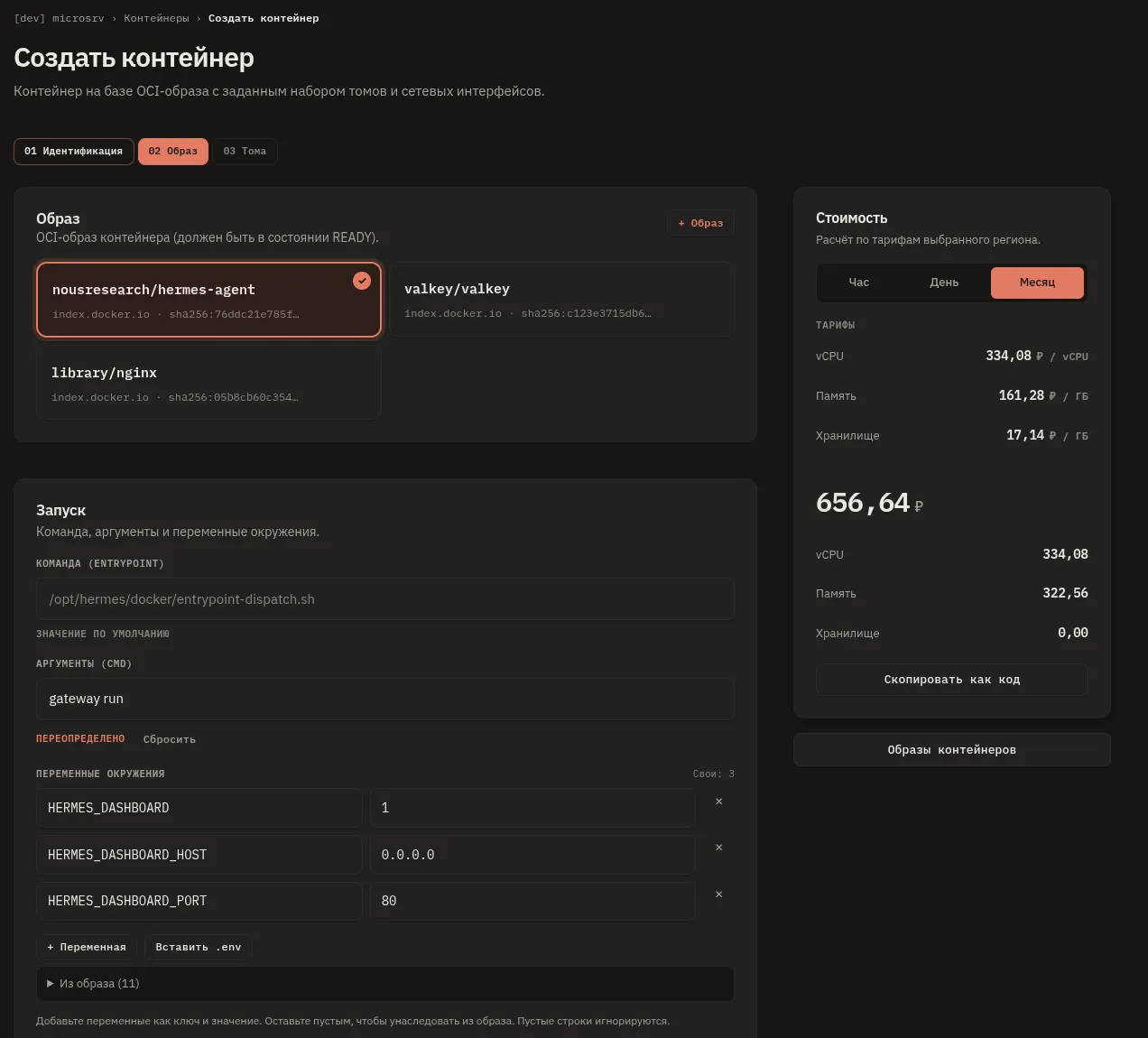
The gateway run arguments put Hermes into persistent service mode: messenger gateways, the API server, and, if enabled, the dashboard all come up.
Environment variables:
| Variable | Value | Purpose |
|---|---|---|
HERMES_DASHBOARD |
1 |
Enable the web dashboard |
HERMES_DASHBOARD_HOST |
0.0.0.0 |
Listen on all container interfaces, otherwise the gateway can’t reach it |
HERMES_DASHBOARD_PORT |
80 |
Dashboard port, the one we’ll publish through the HTTP gateway |
HERMES_DASHBOARD_BASIC_AUTH_USERNAME |
your login | Basic auth login for the dashboard |
HERMES_DASHBOARD_BASIC_AUTH_PASSWORD |
your password | Basic auth password |
HERMES_DASHBOARD_BASIC_AUTH_SECRET |
Secret for stable sessions across restarts | |
API_SERVER_ENABLED |
true |
Enable the OpenAI-compatible API |
API_SERVER_HOST |
0.0.0.0 |
Listen on all container interfaces |
API_SERVER_KEY |
API bearer key, at least 8 characters | |
API_SERVER_CORS_ORIGINS |
* |
Allowed origins. Fine inside a private VPC; tighten as needed |
The “Generate” buttons in the table do the same thing as openssl rand -hex 32: they take 32 random bytes via crypto.getRandomValues locally in your browser and put the value straight into the clipboard. The full value is never displayed anywhere except the clipboard, so save it to your secrets manager right away.
The LLM provider key is easiest to pass as another environment variable: OPENAI_API_KEY, ANTHROPIC_API_KEY, or whichever provider you use. Environment variables override the config inside the container, so this is the shortest path.
If you prefer docker run, here are the same settings:
docker run -d --name hermes --restart unless-stopped \
  -v ~/.hermes:/opt/data \
  -p 80:80 \
  -e HERMES_DASHBOARD=1 \
  -e HERMES_DASHBOARD_HOST=0.0.0.0 \
  -e HERMES_DASHBOARD_PORT=80 \
  -e HERMES_DASHBOARD_BASIC_AUTH_USERNAME=admin \
  -e HERMES_DASHBOARD_BASIC_AUTH_PASSWORD="..." \
  -e HERMES_DASHBOARD_BASIC_AUTH_SECRET="$(openssl rand -hex 32)" \
  -e API_SERVER_ENABLED=true \
  -e API_SERVER_HOST=0.0.0.0 \
  -e API_SERVER_KEY="$(openssl rand -hex 32)" \
  -e API_SERVER_CORS_ORIGINS='*' \
  index.docker.io/nousresearch/hermes-agent@sha256:76ddc21e... \
  gateway run
On microsrv you don’t need to mount the volume. The external port is published by the gateway.
5. Step 3. Publishing the dashboard via the HTTP gateway
The dashboard listens on port 80 inside the container. The “Gateway” section exposes it: check Publish HTTP, and the platform creates a route on a *.msrv.space domain and issues a TLS certificate on its own. No Certbot needed. Leave the SSH checkbox untouched: port 22 has no business being on the internet, and for administration there’s the SSH gateway. If you skipped this section during creation, the same toggle is available in the container card.
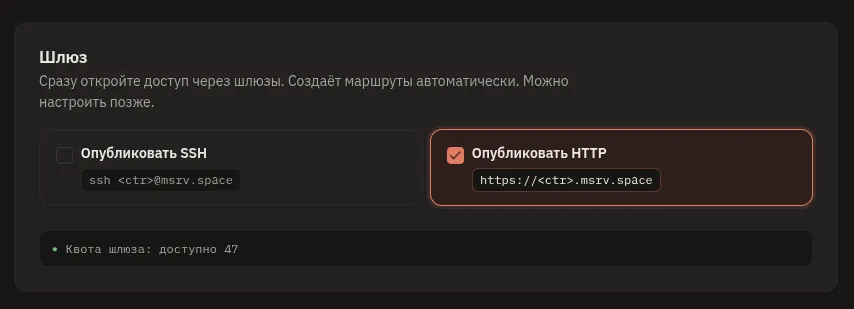
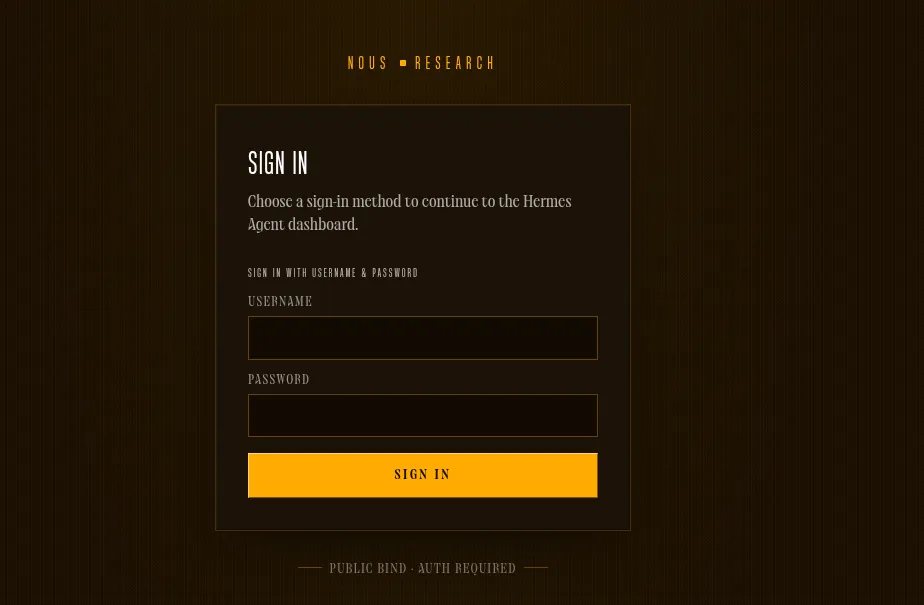
Access is protected by two layers. Basic auth on the panel itself (the HERMES_DASHBOARD_BASIC_AUTH_* variables) greets every request with a login page. The private network adds a second layer: the container has no public IP, only the gateway is visible from the outside.
This isn’t overkill. In June 2026, scanners found agent dashboards on the internet without authentication and used them to inject SSH backdoors. After that the Hermes authors made authentication mandatory on every address except loopback, and a username–password pair remains the simplest way to set it up.
6. Step 4. First login and verification
Open the domain the gateway assigned (*.msrv.space) and enter your username and password. The dashboard is on screen.
The API server stays inside the private network. You can test it from any machine in your VPC using the container’s internal IP (10.x.x.x, visible in the container card):
curl http://10.x.x.x:8642/v1/chat/completions \
  -H "Authorization: Bearer $API_SERVER_KEY" \
  -H "Content-Type: application/json" \
  -d '{"model": "hermes-agent", "messages": [{"role": "user", "content": "Hi! What can you do?"}]}'
SSE streaming, /v1/responses with server-side conversation state, and /v1/models for the model list all work. Any OpenAI-compatible client connects to http://10.x.x.x:8642/v1 with your API_SERVER_KEY.
If the provider key wasn’t set via an environment variable, shell into the container once and run hermes setup, choosing the provider interactively. The config lands on the same volume and survives any restart.
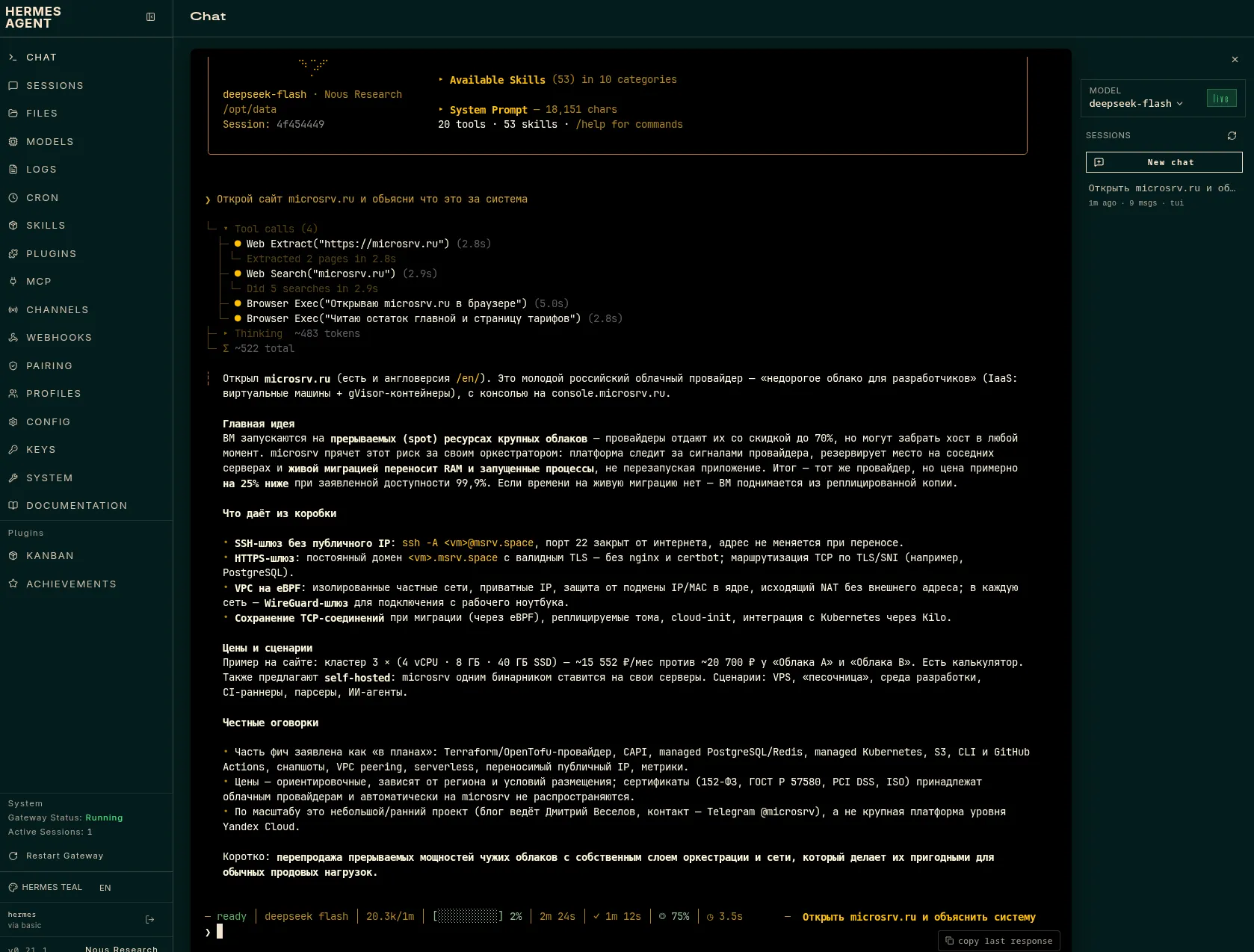
7. What’s next
The container with gateway run doesn’t change after this, everything else layers on top. Connect a Telegram bot and the agent becomes available from your phone: send a task, it runs on its own server and replies in the chat. Set up a cron task in plain language — say “every morning at 9:00 send a task summary” — and the Hermes scheduler delivers the report to the channel you pick. The agent creates and refines skills on its own as it works. External MCP servers add tools, from GitHub to corporate APIs. When a new version comes out, register the image with a fresh digest and recreate the container — the state on the volume stays right where it is.
Summary
Hermes really does learn. Memory, skills, and the scheduler work out of the box, with no extra plumbing. microsrv handles the infrastructure side. A persistent volume for state, a private network, a gateway with TLS. Five console steps between an empty project and a running agent.
Sources and further reading
- Hermes Agent documentation and the Docker deployment section: official image internals, s6 supervision, environment variables
- Hermes API server: full
/v1/*endpoint reference - GitHub: NousResearch/hermes-agent: source code, MIT license
- microsrv: container creation, Stateful OverlayFS, HTTPS gateway, eBPF networking
From practice: pin the image by digest, and generate
API_SERVER_KEYandHERMES_DASHBOARD_BASIC_AUTH_SECRETwith the buttons in the table above — store them in a secrets manager. A 5 GB volume is plenty: agent sessions, memory, and skills accumulate over time.
FAQ
What’s the difference between the dashboard (port 80) and the API (8642)? The dashboard is for humans: a web interface published through the HTTPS gateway with basic auth. The API is for your applications: an OpenAI-compatible protocol that stays inside the private VPC.
Why not the latest tag? Tags move without warning. A digest locks the exact image version — you update only when you decide to.
What happens when the container restarts? Config, keys, sessions, memory, and skills live on the persistent volume via Stateful OverlayFS. Restarts, host migrations, and image updates don’t touch the state.
Can I run multiple agents? Yes. Hermes supports profiles inside a single container (hermes profile create). If you need hard resource isolation, spin up separate containers with different volumes.
Run serverless VMs, containers, and databases
microsrv offers instant VM & container startup, fast NVMe databases, and included VPC with access gateways for maximum developer convenience.